Monday, April 17, 2017
posted by Geetesh
at 1:00 AM IST
This is a promoted post.
If you’re anything like me, there are two things you don’t like in a presentation: a boring speaker, and bulleted lists! These have been around for ages, and even though they are useful in text-heavy supports (like Word documents for examples), in PowerPoint, they are the best way to say “I know pretty much nothing about PowerPoint, and here is my presentation”.
Here’s an example of a slide made by some of my students, using one of these bulleted lists:

After I gave them their much deserved “Presentation of the Year 1980” award, I made some tweak to the slide, and ended up with this:

Let’s forget the background picture here and focus on the main improvement: we got rid of the awful bulleted list. See, we human beings are visual creatures, so it’s a good idea for presenters to reduce the amount of text on their presentation supports to a minimum.
One great way to do this is using ribbons, like the one above. And they can be useful to list ideas, to illustrate the topics of the presentation, to give life to a SWOT analysis, to show relations between ideas, and so on. Basically, everything you show as a bulleted list can be replaced by ribbons.
So how do you make such slides? I see three options.
- Option one is making them directly in PowerPoint. It’s certainly doable, but it might prove difficult, especially if you want to add some 3D goodness. If this is the road you feel like going, Indezine has some useful guides to learn about PowerPoint's built-in shape tools.
- Option two is more flexible but requires a vector editing tool, like Adobe Illustrator. You can do pretty much anything with it, but you may feel overwhelmed if you’ve never used this great piece of software. One thing to note, however, is that you’ll need to export your newly created ribbon graphics as EMF (Extended Meta Files) or WMF (Windows Meta Files) file formats. Both EMF and WMF are vector files that PowerPoint can insert onto slides. Once you’ve done this, you’ll find yourself in possession of a ribbon vector graphic that scales without any loss of quality, which you can colorize directly using PowerPoint's fill and line tools.
- Option three is to buy pre-built templates. It does cost money, but depending on where you shop, you get higher quality slides, and you can download them right away. Our site at Dr. Slides, which specializes in professional presentation templates, is one of these shops.
Here’s is a (very) small selection of what’s available at Drslides.com:
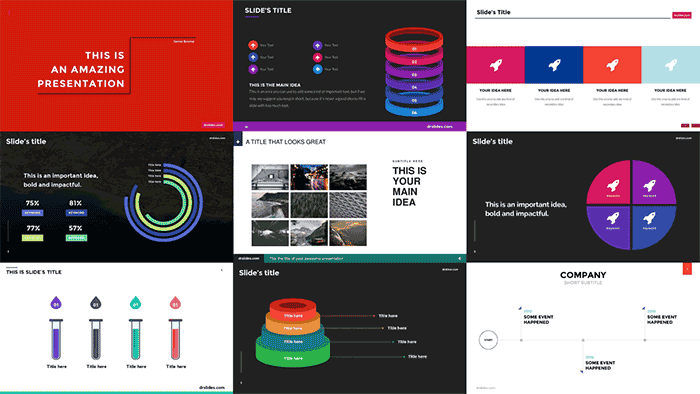
You don’t see any bulleted list here, and that’s because they are ineffective. As for ribbon templates specifically, you can
see our collection here.
Our team has worked at companies like Dell and Procter & Gamble, and some of us are also teachers/instructors in various degrees, from A-levels to Masters, in fields like communication, sales, digital transformation, and web design, among others. We’ve certainly seen and made hundreds of presentations, so we know what works, and what doesn’t.
Summing up, leave bulleted lists for Word, and use visual techniques to illustrate your ideas. Ribbons are a great way to do this, but for more options, you can
visit our site.
Drslides.com is a one stop shop for those who want to improve their presentation game. Available templates come in 16:9 and 4:3 format, and work with Powerpoint and Keynote. Sample categories include charts, timelines, steps/processes, galleries, diagrams and more.
The company was founded by a former Dell and Procter & Gamble alumni, and has a team of teachers/instructors, who work in fields as diverse as sales, communication, project management or law.
