
This is a sneak preview -- you are seeing this page because you need to possibly
approve this content and get back to us. Have a great day!
There are many new features in PowerPoint 2013 but my favorite is the one that lets you convert your text to outlines – this may be an undocumented feature but it certainly is among the most useful ones! I found this feature quite by accident, and was blown away by the amazing potential this one feature brings forth to presentation designers. When I demoed this at the Presentation Summit in Austin two years ago, there were many who later got in touch with me, or mailed me to learn more.
Unfortunately, I haven’t created a tutorial on this technique on Indezine.com yet – and that’s something that will be addressed soon. Meanwhile, you may not even need to follow a step by step tutorial and will be able to achieve the same results with just one click, thanks to a new, free add-in created by my friend, Jamie Garroch.
In fact, Jamie not only created this free add-in. He additionally compiled a list of scenarios in which you will find this add-in useful!
So what results can you expect from this add-in?
Look at Figure 1, below -- this shows a simple rectangle shape (call it a text box!) in PowerPoint 2013 that contains some text.
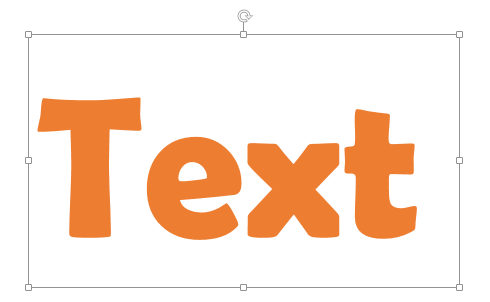
Figure 1: Text to start with
Let's assume this is a non-standard typeface (font) -- and you need to share slides containing this content with others. You are sure they won't have this typeface available on their computers. So how can you ensure that they can see the text exactly as you intended? And also have the added benefit of recipients not being able to edit your text!
With the new Convert Text to Outlines add-in, you just need to click a button in PowerPoint 2013 -- and presto, your text is converted to a native PowerPoint shape, as shown in Figure 2, below.
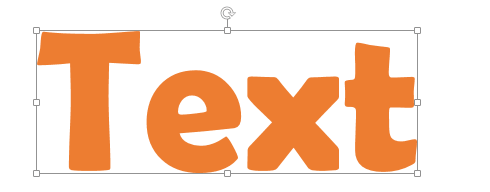
Figure 2: Text that looks like text, but is actually a shape now!
So how can you ascertain whether this is really a shape, and not text? There are many ways you can do that (try replacing text -- it won't work!) -- but the easiest way is to right-click and see if you see an Edit Points option (see Figure 3, below).
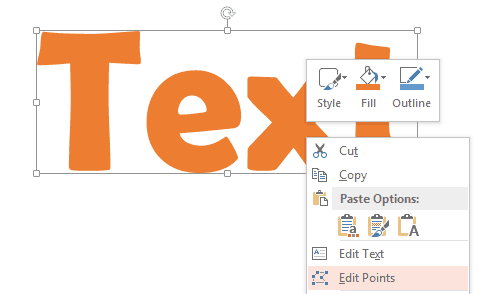
Figure 3: Do you see the Edit Points option?
Go ahead and click the Edit Points option, and you will see all the points (vertexes) that hold this shape together, as shown in Figure 4, below.
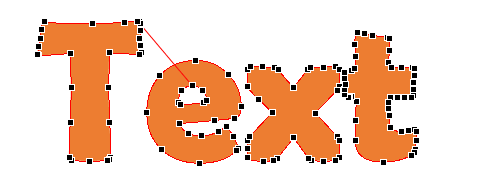
Figure 4: All those points can be edited
You can actually select any of those points and drag them around to alter your shape. Made a mistake? Quick -- undo using the Ctrl+Z keyboard shortcut! Want to learn more -- explore our Edit Points page.
OK -- don't worry about all the handles that you see in Figure 4, above -- those show up only because we were in Edit Points mode to prove that this is indeed a shape. Just click anywhere else and you'll get out of Edit Points mode and you'll just see what looks like pristine text, as shown in Figure 2, earlier on this page.
And with this Convert Text to Outlines add-in, the text that is converted to shapes retains the fill and line attributes of the original text. To achieve this magic, Jamie had to create a Text-To-Shape Format Painter element within PowerPoint -- this is what makes this add-in really special because even if you did this manually, there's no real equivalent feature in PowerPoint.
Do understand that you must install this add-in in PowerPoint 2013 to take advantage of the text to outline features. Although you can install the add-in in PowerPoint 2007 and 2010, the outline conversion cannot happen in those versions of PowerPoint since this capability was only added in PowerPoint 2013.
And even though this add-in will do the text to shape conversion only within PowerPoint 2013, the resultant shapes will work in all versions of PowerPoint.
Microsoft and the Office logo are trademarks or registered trademarks of Microsoft Corporation in the United States and/or other countries.