
This is a sneak preview -- you are seeing this page because you need to possibly
approve this content and get back to us. Have a great day!
I am sure many of you use Slide Sorter view in PowerPoint -- it's a great view to get a larger picture -- you know which slides follow each other in sequence, and you can clearly see any hidden slides (see Figure 1, below).
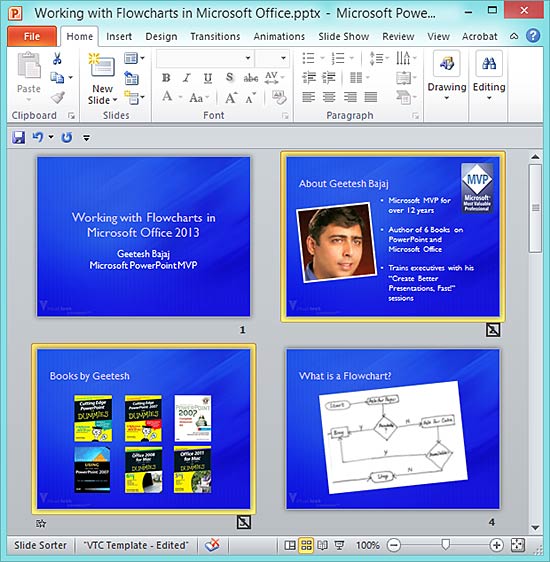
Figure 1: The faded slides are the hidden ones
Additionally, this is a great view to reorder your slides -– or even delete and duplicate them as required. I also love this view when I need to copy a bunch of slides from one presentation to another. Yet, there's at least one feature within this view that I had never played with – and that’s because I was not aware of this one!
That's the reason I was a little surprised when Tom Mucciolo sent me a message that said:
I appear to be baffled… in older versions of PowerPoint, there was the ability in Slide Sorter view to turn off the slide "formatting". This allowed one to see the slides by "name" rather than by picture, assuming the "title" text placeholder was used to identify the slide.
I have a master presentation of 20 slides, all with the same image, each of which calls a different PowerPoint presentation (OLE item). When the slide formatting is turned off, I can see the "names" (using the title box) to identify which of my 20 presentations I want to hide or display for a given presentation program.
If I were only able to display the slide thumbnails, I would not know which slides are linked to which presentations because every slide in the sorter would display the same image! I cannot seem to find that toggle to turn on/off the slide formatting in PowerPoint 2010 --- has it been eliminated?
It was beyond office hours and I had no access to older PowerPoint versions on my home computers -- I explored in both PowerPoint 2010 and 2013 and could find no such option in Slide Sorter view. So I suggested that Tom could:
The next day at my office, I found no such option in PowerPoint 2007 as well – but wait, it was right there within PowerPoint 2003! Most certainly, this was one of those options that was removed to make room for the Ribbon interface!
Before I could explore the Ribbon or QAT customization options, I heard from Tom:
I found the solution to my question -- I edited my Quick Access Toolbar and inserted the "Show Text Formatting" command – this toggles the Slide Sorter thumbnails to display either as images or as text-based placeholders.
Thanks for sharing your findings, Tom! I tried doing the same and this works great in both PowerPoint 2007 and 2010 -- Figure 2, below shows the "Show Text Formatting" command highlighted in red. Notice that all slides now just show the slide title (compare with Figure 1, earlier on this page). Tom adds that you need to use a slide layout that contains a title placeholder or else the descriptive text used to identify the slide will not show in the unformatted view.
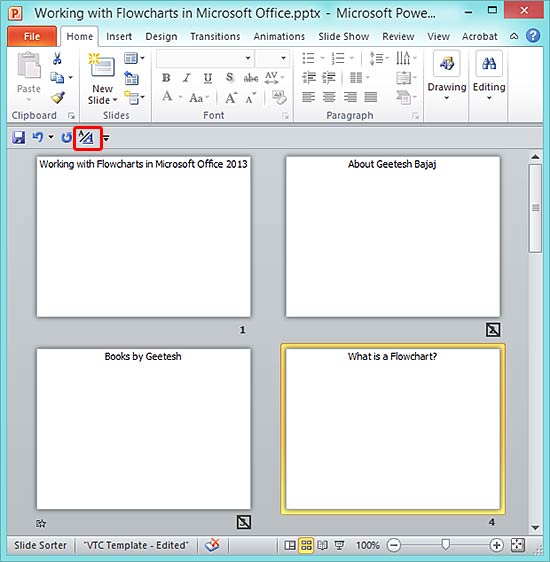
Figure 1: The faded slides are the hidden ones
There's a small problem though -- if you try doing this same trick in PowerPoint 2013, you'll find that the "Show Text Formatting" option just grays out in Slide Sorter view! At least, it works in 2007 and 2010!
Microsoft and the Office logo are trademarks or registered trademarks of Microsoft Corporation in the United States and/or other countries.